Ronin Theme Documentation
Welcome to the Ronin theme user documentation. If you have any questions about theme features, configuration or bug fixes, then you should find it here. If you can't find the answer you need, contact us through our email [email protected]
How to install Ronin theme
To install Ronin, complete the following steps:
-
At the store's admin, go to Sales channels > Online store > Themes > Theme library.
-
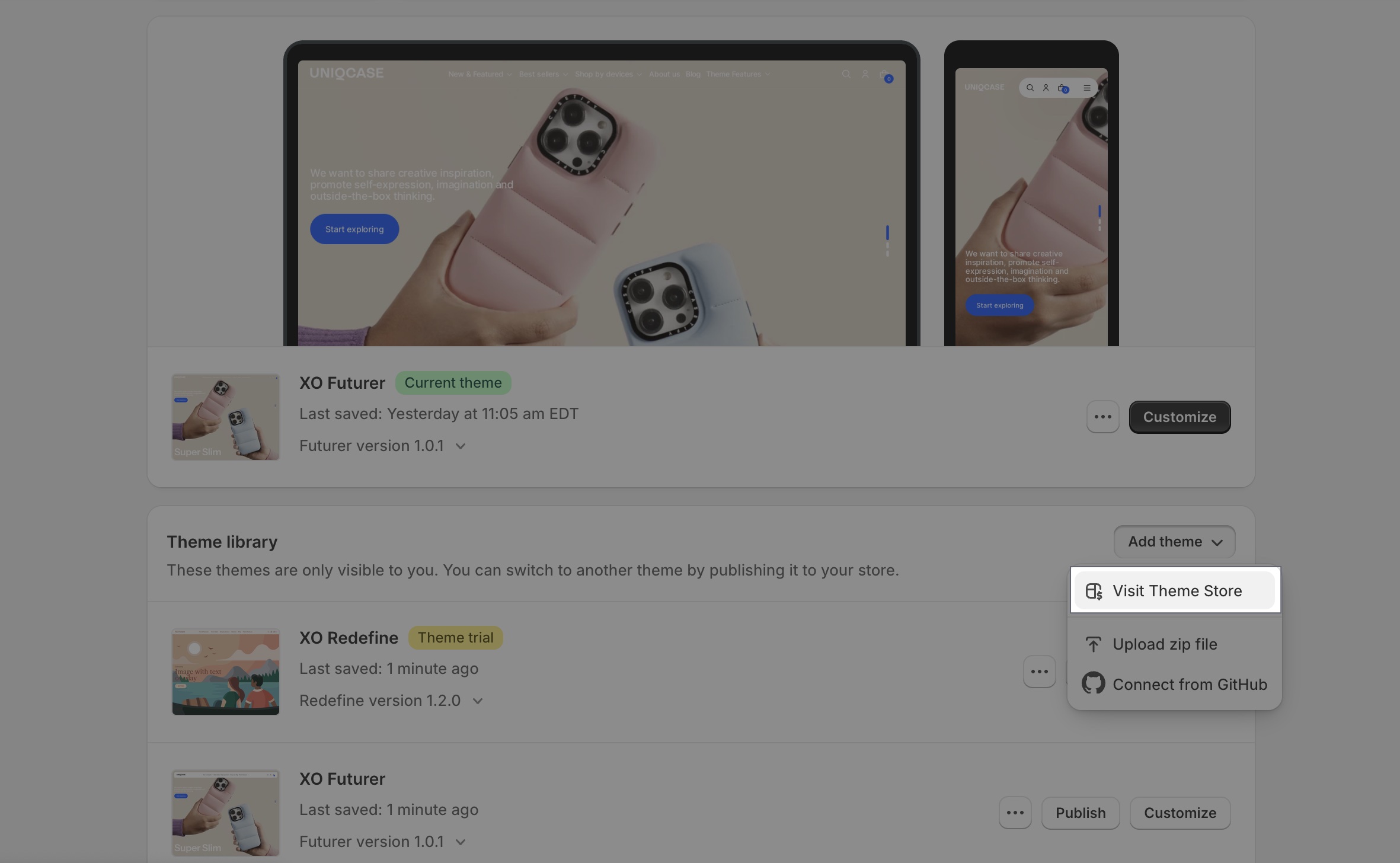
At Theme library, click on Add theme and choose Visit Theme Store.
-
Enter Ronin as the search term into the Search bar.
-
Select Ronin, then click on Try theme.
-
Now, confirm if Ronin is listed in your Theme library.
-
You have several actions to take with a theme, including:
- Preview. Apply Ronin to your store temporarily, to see its appearance.
- Buy. Purchase Ronin.
- Customize: Edit Ronin as you want with in-depth settings
- Remove. Delete Ronin from your theme library.
- Publish: Apply Ronin theme to your store
Nice! Now you've installed Ronin theme successfully and can start using for your Shopify store.
Where to go next
- About Ronin — key features and the three style presets.
- Theme sections — every section you can add to a page.
- Theme blocks — the modular blocks that live inside sections.
- Theme settings — global typography, colors, cart, and more.
Email us at [email protected]