Cart attributes
This guide describes how to collect extra information about the whole order (a preferred session date, a gift message, "how did you hear about us") on the cart page.
Cart attributes are saved with the cart and, after checkout, appear on the order in your Shopify admin under Orders > [order] > Additional details.
guide-cart-attributes-1.webp
Add the attribute fields
- On your store's Shopify admin page, from the left-side menu, select Sales channels > Online store > Themes.
- In the Current theme section, select Customize to open the Theme editor.
- From the page selector at the top, select Cart, then select the Main cart section in the sidebar.
- Select Add block > Cart attributes. Add one block for each field you want to collect.
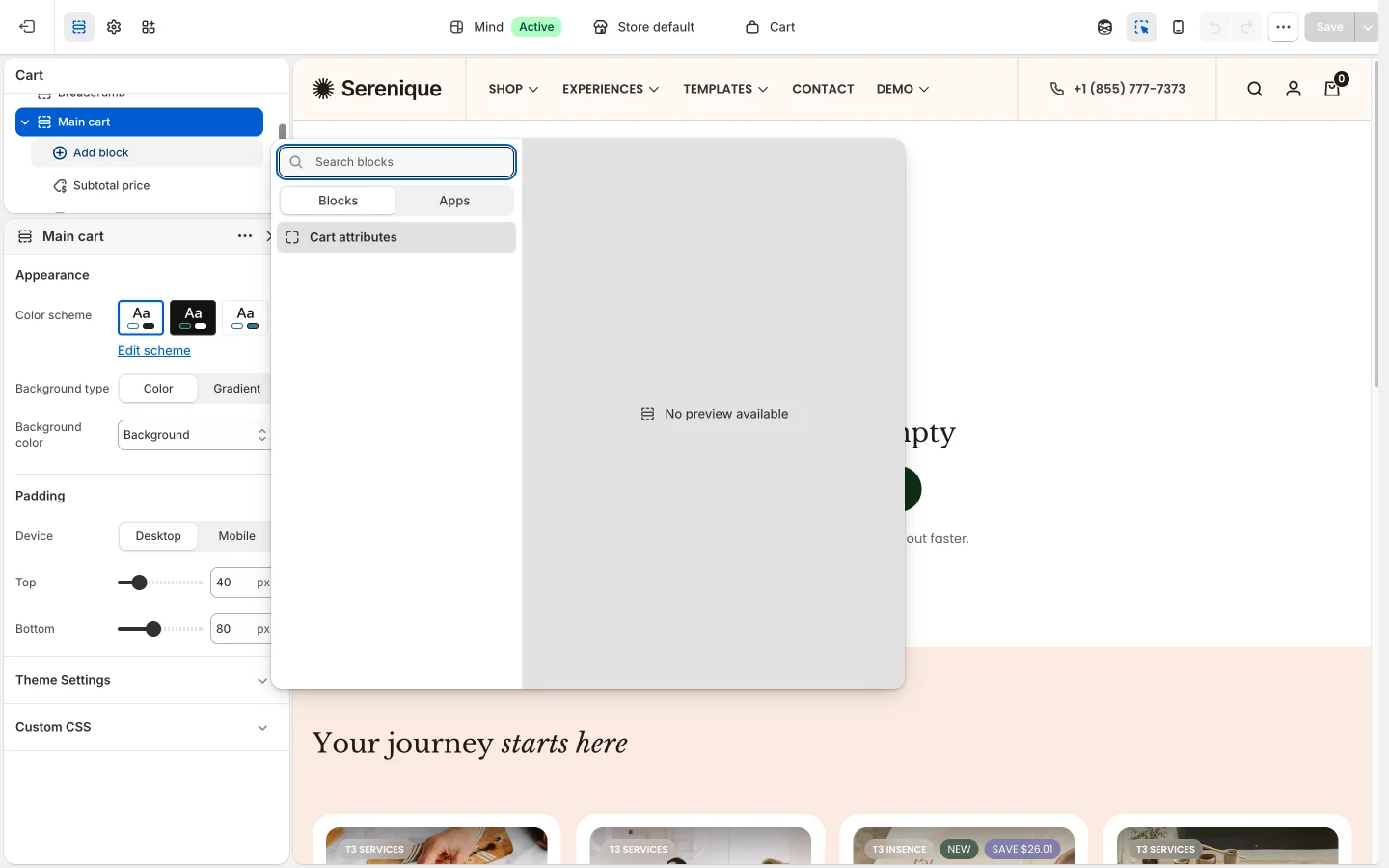
- Configure each block:
- Type: Default (single-line text input), Checkbox, Radio or Dropdown.
- Label: the field label. It is also the attribute name shown on the order, so keep it short and unique.
- Checkbox group, Checked value and Unchecked value: the values saved for a ticked or empty checkbox (default
Yes/No). - Radio buttons group, Options: the choices for a Radio field, separated by commas (for example
Morning, Afternoon, Evening). - Dropdown list group, Options: the choices for a Dropdown field, separated by commas.
guide-cart-attributes-5.webp
- Drag the blocks into order. The order summary shows the blocks of the Main cart section in the order you set, together with the Subtotal price and Checkout button blocks, so place the Cart attributes blocks above Subtotal price to keep the fields before the total.
- Select Save. The values are saved to the cart and carried through checkout onto the order.
Each Cart attributes block appears in the order summary as its own collapsible row, titled with the block's Label. Shoppers expand the row to fill in the field.
Cart attributes are only shown on the cart page. If Theme settings > Cart > Cart type is set to Drawer or Popup notification, customers reach the cart page from the cart drawer or notification. The cart drawer supports an order note and a discount code instead; turn those on with Show cart note and Show cart discount in the same settings group.
To collect information about one product rather than the whole order, use the Line item property block on the product page. See Product line item properties.