Product coutdown timer
Show a countdown on the product page to create urgency for a sale or limited offer. Each product has its own end date, set with a product metafield.
Step 1: Add the metafield definition
You only need to do this once for your store.
1. From your Shopify admin, go to Settings > Metafields and metaobjects > Products.
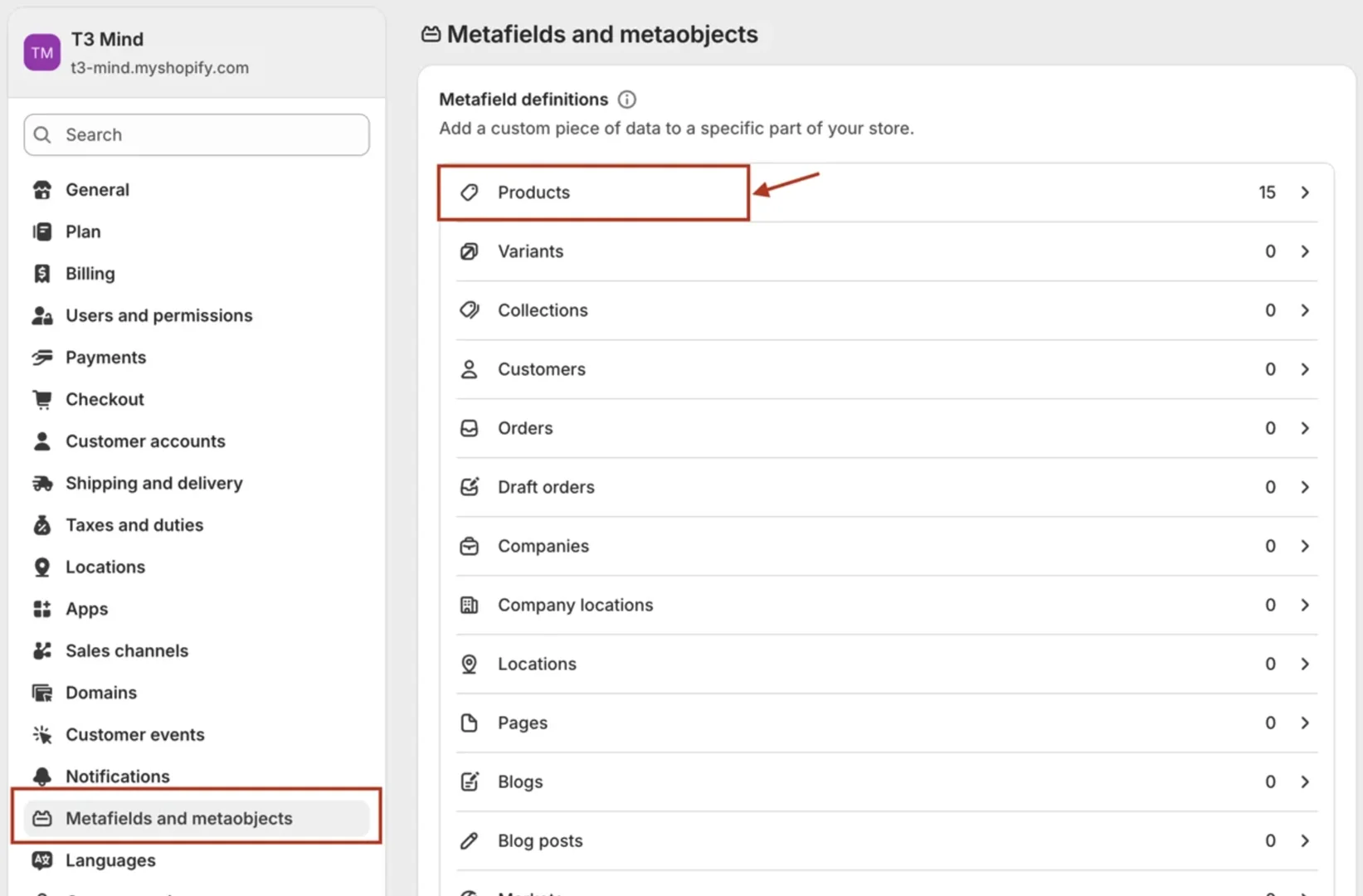
2. Click Add definition.
3. In the Add product metafield definition box, enter:
-
Name:
Product countdown -
Namespace and key:
theme.product_countdown -
Type: select Date and time.
4. Click Save.
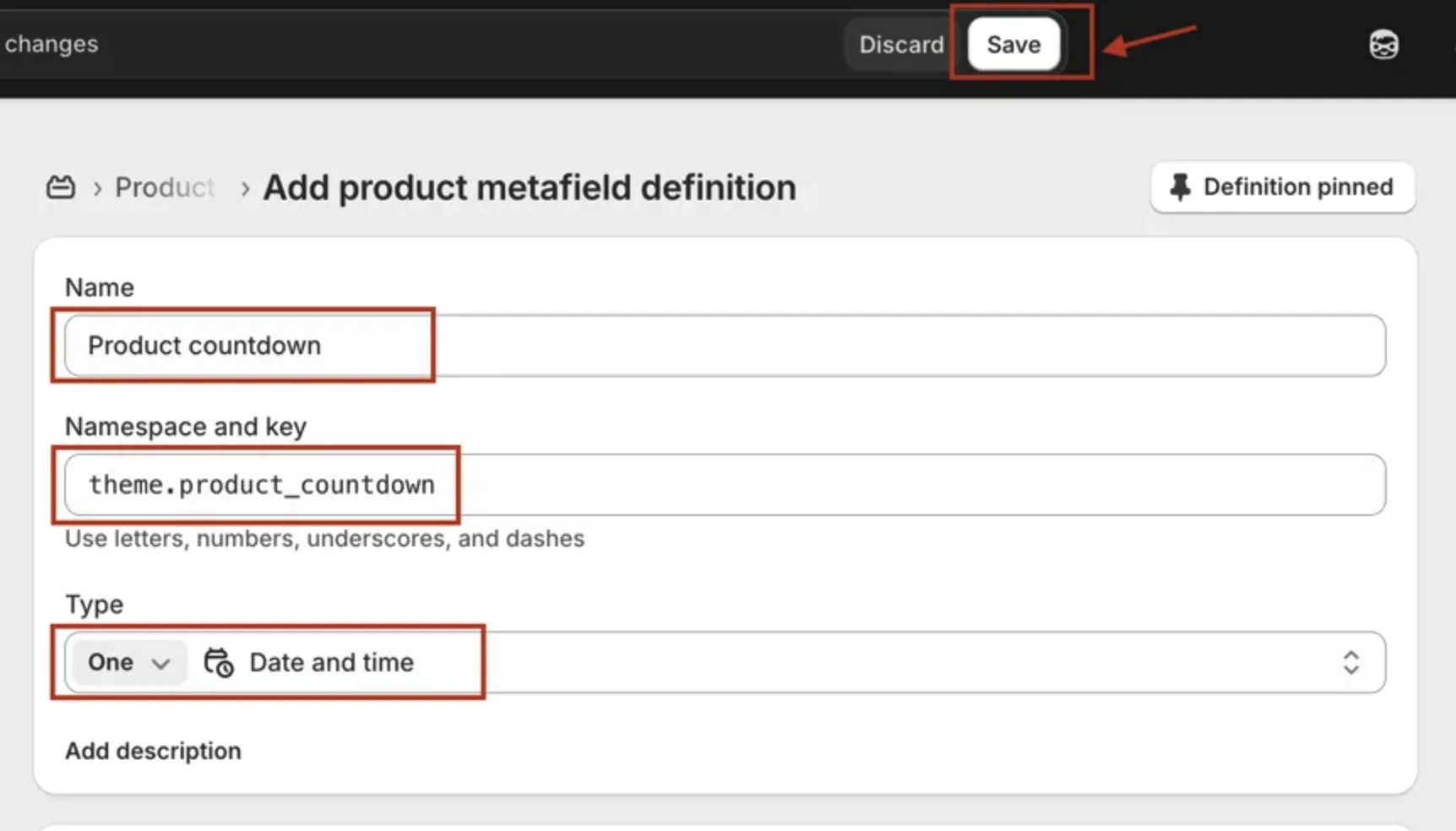
Important: The namespace and key must be exactly
theme.product_countdown. Shopify fills this field in automatically from the name (custom.product_countdown). That also works, but any other key won't be read by the theme.
Step 2: Set the end date for a product
1. From your Shopify admin, go to Products and open the product whountdown.
2. Scroll down to Metafields. You should see Product countdown. If you can't find it, click View all.
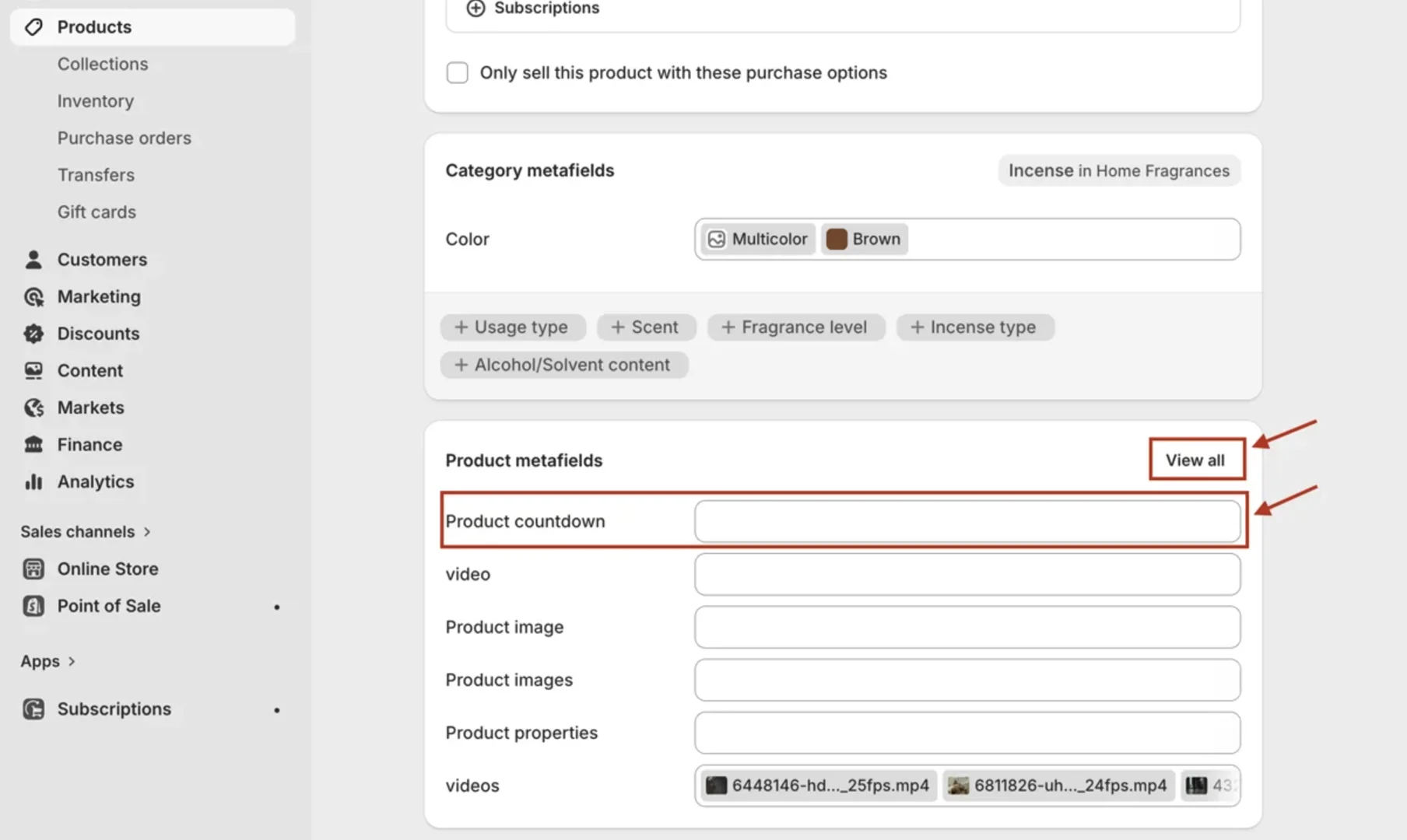
3. Click the Product countdown field and set the date and time when the offer ends.
4. Click Save.
Note: The time uses your store's time zone (Settings > General). Customers in other time zones still see the correct time remaining.
Step 3: Add the Countdown timer block
1. From your Shopify admin, go to Online Store > Themes > Edit theme
2. Open a product page template.
3. In the Product information section, click Add block and choose Countdown timer. The same block is also available in the Featured product section.
4. Set the text shown next to the timer:
-
Headline: the main line, for example "Limited time offer".
-
Label: the small line below it, for example "Hurry up!".
5. Click Save.
Tip: The block only appears on products that have a countdown date, template for all your products.
When the countdown ends
The timer stops at 00 : 00 : 00 : 00 but stays on the product page. When the offer is over, open the product, clear the Product countdown field and click Save to remove the timer.