How to set up metafields for product properties
Show key details, such as material, size or care, as a small panel on the product image in product cards. Each property has a title and a short description, and you set them per product.
Step 1: Create the metaobject definition
You only need to do this once for your store.
1. From your Shopify admin, go to Settings > Metafields and metaobjects.
2. Under Metaobjects, click Add definition.
3. Enter:
-
Name:
Product property -
Fields: add 2 fields:
-
Title: Single line text -
Description: Multi-line text
-
4. Click Save.
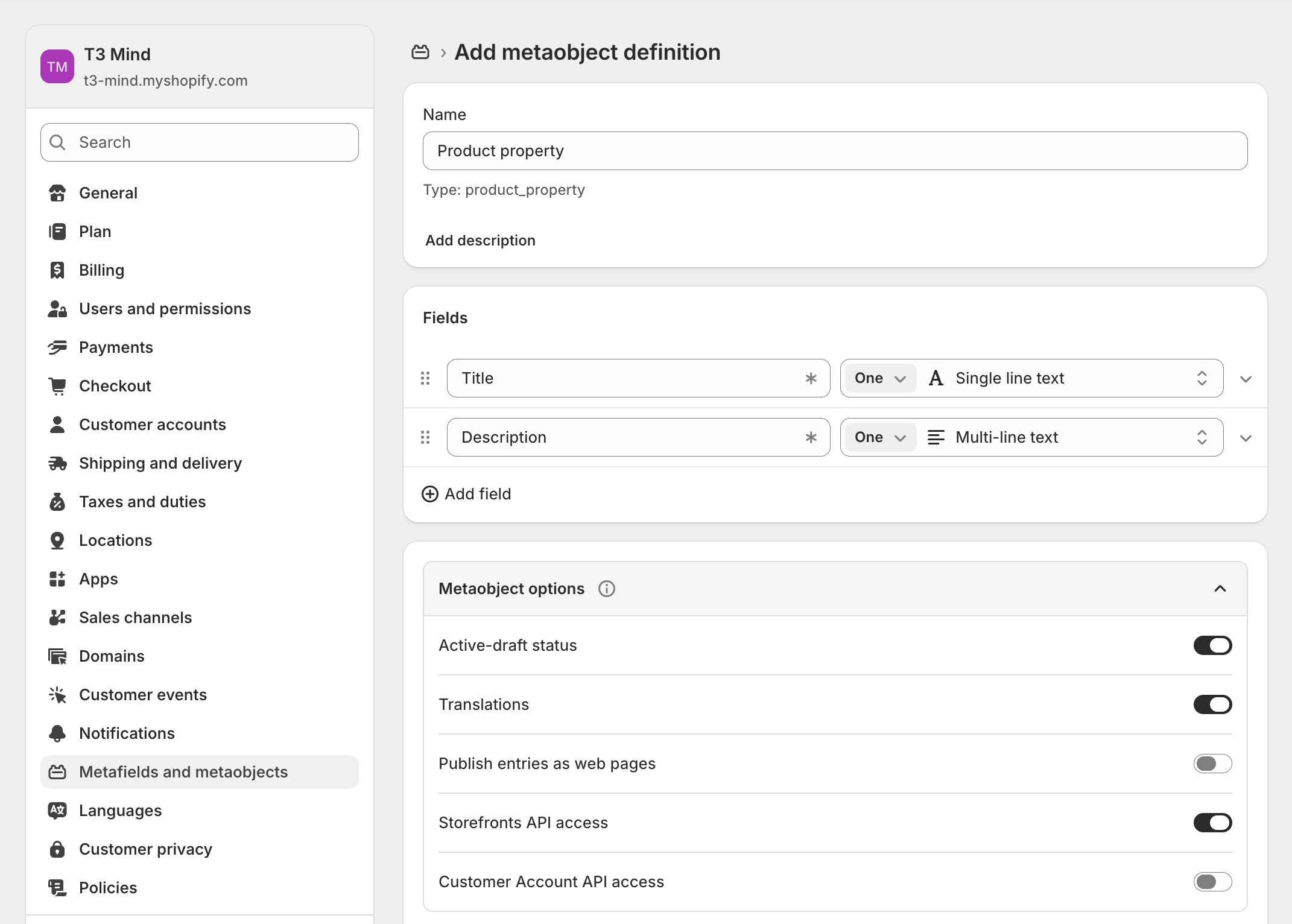
Important: The field keys must be exactly
titleanddescription. Shopify creates the key from the field name, so name the fields Title and Description. Fields with other names won't show on the product card.
Step 2: Create the product metafield definition
1. Go to Settings > Metafields and metaobjects > Products, then click Add definition.
2. Enter:
-
Name:
Product properties -
Namespace and key:
theme.product_properties -
Type: choose Metaobject, select the Product property definition, then choose List of entries.
3. Click Save.
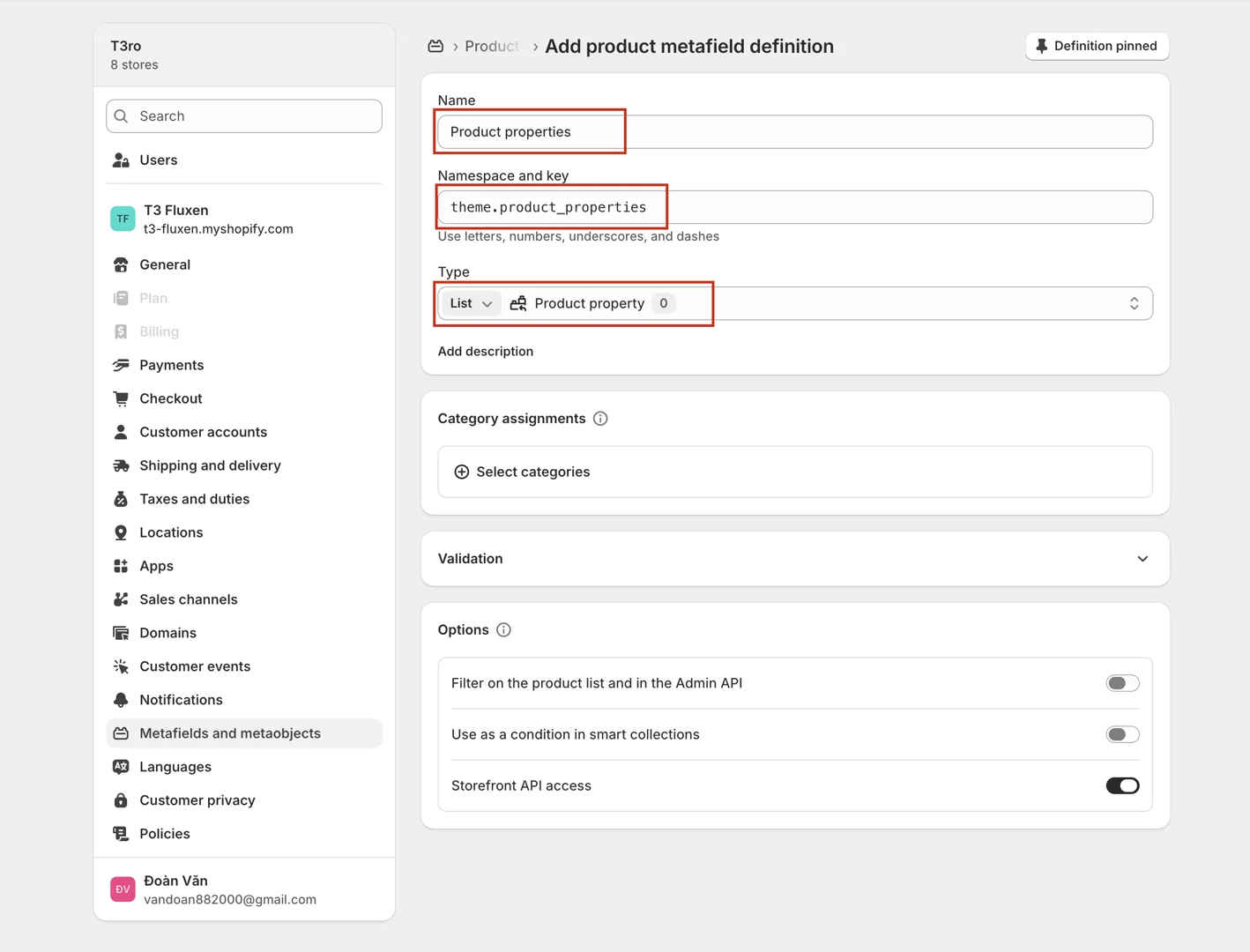
Important: The namespace and key must be exactly
theme.product_properties. Shopify fills this field in automatically from the name (custom.product_properties). That also works, but any other key won't be read by the theme.
Step 3: Add properties to a product
1. Go to Products and open the product.
2. Scroll down to Metafields and click Product properties. If you can't find it, click View all.
3. Click Add new entry, enter a Title and Description, then save. You can also select an entry you've already created for another product.
4. Add up to 3 properties, drag them into the order you want, then click Save.
Tip: Anything after two underscores (
__) in a title is hidden on your store. For example,Material__Linen shirtshows as Material. Use this to tell apart entries with the same title when you select them in the admin.
Step 4: Show properties on product cards
1. Go to Online Store > Themes > Customize.
2. Make sure your card style supports properties: in Theme settings > Product cards, set Style to Standard or Inverted.
3. Open the section that shows the products and check Show properties on the image. This setting is available in:
-
the product grid on collection and search pages
-
the Related products section on product pages
4. Click Save.
How properties appear
-
Up to 3 properties are shown per product. Any more are ignored.
-
On desktop they sit side by side: 3 columns, or 2 columns if a product has 1–2 properties. On mobile they stack, 1 per row.
-
On desktop the panel hides when a customer hovers the card, to make room for the Add to cart button.
-
Products without properties show the card as usual.