Color swatches
This guide describes how to show color swatches for product variants on the product page, in quick view and in collection filters.
Mind reads the swatch color or image from Shopify's option values, so you set the colors once in the admin and the theme displays them everywhere. An option shows as swatches only when its values carry swatch data; the option's name does not matter, so Color, Colour or Couleur all work.
Set up swatch colors in Shopify
- On your store's Shopify admin page, from the left-side menu, select Products, then select a product with a color option.
- In the Variants box, select the color option name and connect the option to Shopify's standard Color category metafield.
- For each option value, set its swatch color or upload a swatch image, then select Save.
guide-color-swatches-3.webp
Configure swatches in Theme settings
- Open the Theme editor (Sales channels > Online store > Themes > Customize).
- Select the Theme settings tab in the sidebar and open Swatches:
- Variant images: when enabled, each swatch shows the featured image of its variant. Values without a variant image fall back to the swatch image, then to the swatch color.
- Width and Height: the size of each swatch.
- Corner radius: from None (square) to Large (fully round). All three presets ship with Large.

- Open Variant pickers to style the text buttons used for the other options:
- Variant width: Fit sizes each button to its content, Fill shares the row equally between the buttons.
- Corner radius: the shape of the option buttons.
- Select Save.
Enable swatches on the product page
- In the Theme editor, select Products from the page selector and open the product template.
- Select the Main product section, then select its Variant picker block (add one from Add block if it is missing).
- Configure the block:
- Style: choose Buttons. Swatches are not shown in Dropdowns style.
- Swatches: turn on to show the swatch color or image instead of the value name, for every option whose values have swatch data.
- Direction (Horizontal or Vertical) and Alignment: how the options are laid out.
- Select Save.
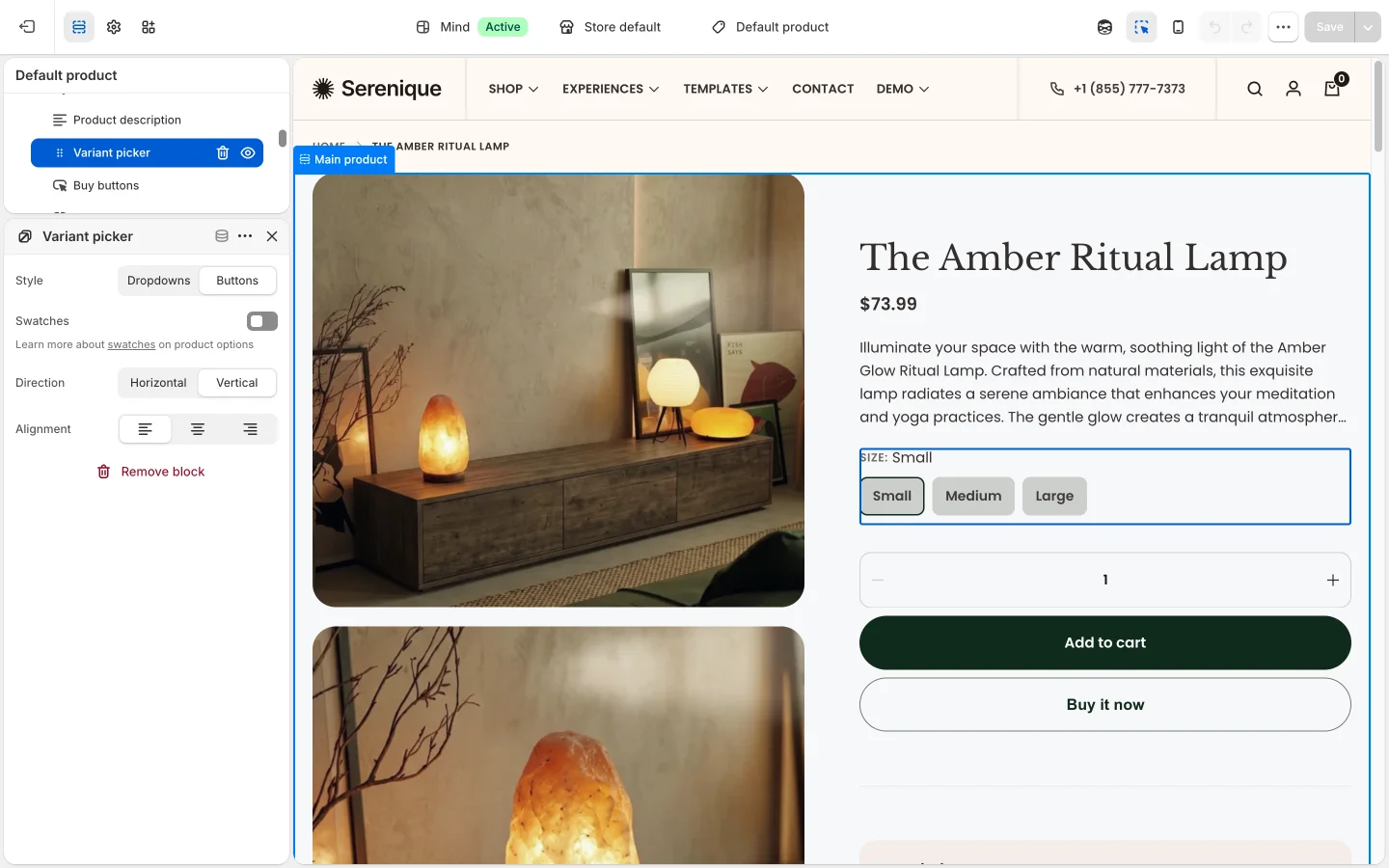
Swatches is off in the Variant picker of the default product template, so turn it on there. The Featured product section has the same Variant picker block with its own Swatches setting. The quick view and the sticky cart's variant selector always show swatches when the option has swatch data.
Swatches in collection filters
When you add a color filter in Shopify's Search & Discovery app and its values carry swatch data, the Main collection filters show that filter as a grid of swatches instead of a list of checkboxes. The swatches use the same Width, Height and Corner radius from Theme settings > Swatches. No theme setting is needed; make sure Filtering is turned on in the Main collection section.
If a value shows as plain text instead of a swatch, check that the option is connected to the Color category metafield and that the value has a color or image assigned in the admin. A value with no swatch data whose name is a single color word (for example Red) is drawn in that color; a multi-word name such as Red Brown shows as text.