Product line item properties
This guide describes how to collect extra information from the customer (a session date, a name for a booking, a gift note) when a product is added to the cart.
Line item properties are saved with the cart line, shown in the cart page, the cart drawer and at checkout, and appear on the order in your Shopify admin.
guide-product-line-item-properties-1.webp
Add a Line item property block
- On your store's Shopify admin page, from the left-side menu, select Sales channels > Online store > Themes.
- In the Current theme section, select Customize to open the Theme editor.
- From the page selector at the top, select Products and open the product template you want to edit.
- Select the Main product section in the sidebar and select Add block > Line item property. Add one block for each field you want to collect, then drag the blocks to where you want them in the buy box (usually above the Buy buttons block).
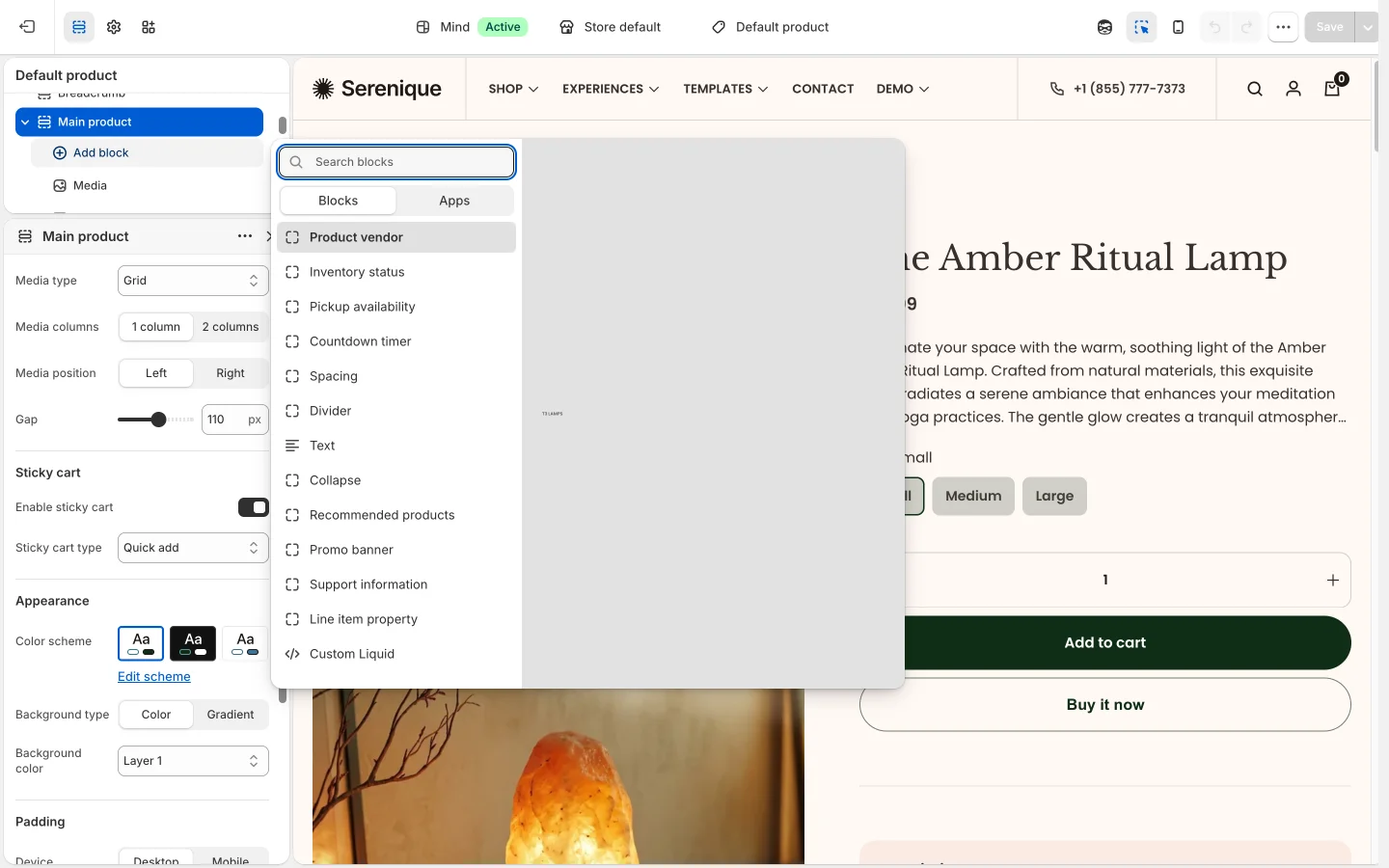
Configure the block
Each block has these settings:
- Type: the kind of field to show.
- Text: a single-line text input.
- Checkbox: a yes/no tick box.
- Radio: a list of radio buttons, choose one.
- Dropdown: a select list, choose one.
- Label: the field label. It is also used as the property name on the cart line and the order, so keep it short and unique (for example
Attendee name). - Placeholder: the hint shown inside a Text field. When empty, the label is used.
- Checkbox group, Checked value and Unchecked value: the values saved when a Checkbox is ticked or left empty (default
Yes/No). - Radio buttons group, Options: the choices for a Radio field, separated by commas (for example
Morning, Afternoon, Evening). - Dropdown list group, Options: the choices for a Dropdown field, separated by commas.
- Colors group, Text color and Background color: pick a color from the scheme or Custom to set your own (Custom text color, Custom background color).
guide-product-line-item-properties-5.webp
- Select Save. The customer's answer is added to the line item when they add the product to the cart and travels with the item through the cart and checkout.
The steps are the same on every product template that uses the Main product section (product, product-2 and service-detail-1). The Featured product section also has a Line item property block for products you sell from the homepage or another page. See Change product template.
To collect information about the whole order rather than a single item, use cart attributes instead. See Cart attributes.